Multi Factor Authentication Setup Guide
Worcester State University requires Microsoft Entra multifactor authentication (MFA) to access certain web applications. Please follow the instructions below to set up your MFA.Video - How to register for Microsoft Entra Multi-Factor Authentication
Text message and phone call verification are being phased out. Microsoft has begun retiring SMS and voice call as MFA methods: starting September 1, 2026 accounts are being nudged toward passkeys, and Microsoft-provided text/call support ends February 1, 2027. If you currently rely on text or phone call, set up the Microsoft Authenticator app now (step 3 below) so you're not locked out later. Learn more about this change.
MFA Setup Instructions
- Go to your Security info page at ( https://aka.ms/mfasetup ) and sign in with your WSU email address. This is Microsoft's self-service page for registering and managing your verification methods.
- If you haven't registered any methods yet, you'll be prompted to add one.
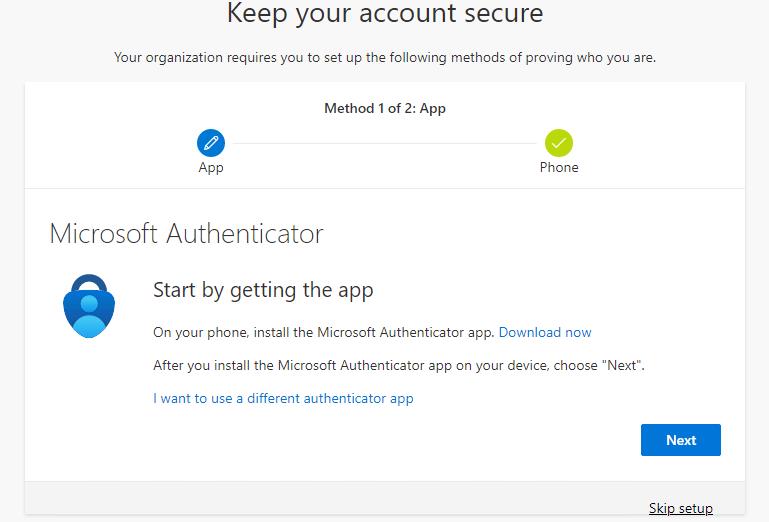
- We recommend adding Microsoft Authenticator as your primary method. It works for push-approval sign-in and one-time codes, isn't affected by the text/call retirement noted above, and — unlike passkeys — works whether you're signing in through Microsoft 365 directly or through one of the many WSU applications that authenticate via our ADFS server.
A note on passkeys: Microsoft is steering users toward Passkey / Passkey in Microsoft Authenticator as its preferred method, and you'll see it offered as an option. However, passkey sign-in currently only works for logins that go directly through Microsoft 365/Entra ID. Many WSU applications authenticate through our on-premises ADFS server instead, which does not support passkey verification. Until that changes, set up Microsoft Authenticator so you have a method that works everywhere; add a passkey too if you'd like, but don't rely on it as your only method.
Note: if you travel internationally, Microsoft Authenticator is the most reliable method since text messages and phone calls may not work abroad.
- Select "+ Add sign-in method" and choose "Microsoft Authenticator".
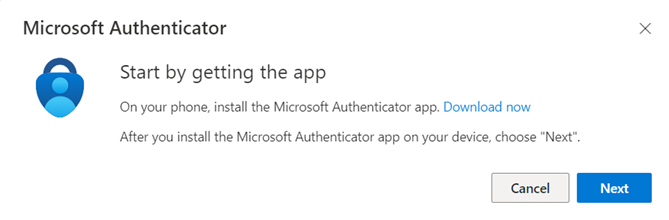
- On your phone, install Microsoft Authenticator from the App Store (iOS) or Google Play (Android), then choose "Next".
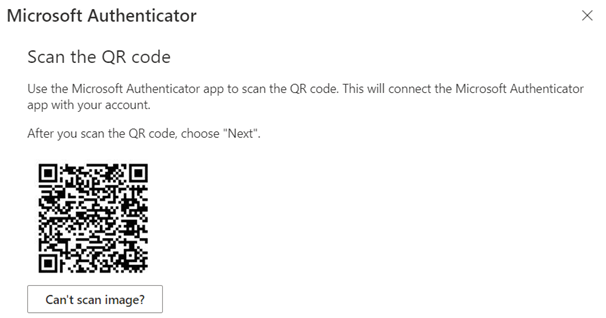
- Scan the QR code shown on your computer screen with the app (choose "Add account" > "Work or school account" in the app first if it doesn't offer to scan automatically).
- Allow notifications and approve the test prompt sent to your phone to finish setup.
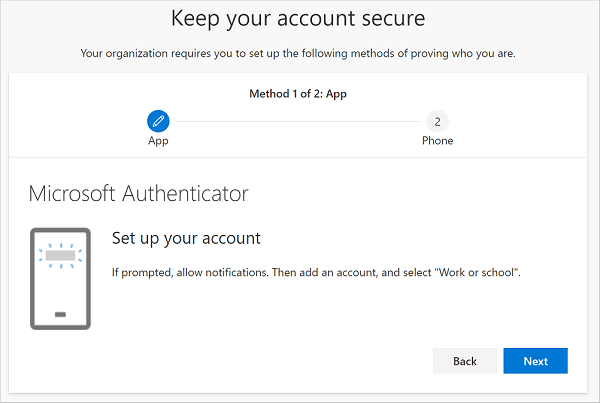
After this, most sign-ins will show a push notification on your phone — tap Approve (and match the number shown on screen, if prompted) to sign in.
As a backup method, you can also add a phone number (call or text):
- Select "+ Add sign-in method" and choose "Phone" (shown as "Alternate phone" or "Office phone" if you already have one phone method registered), then enter the number and click Next.
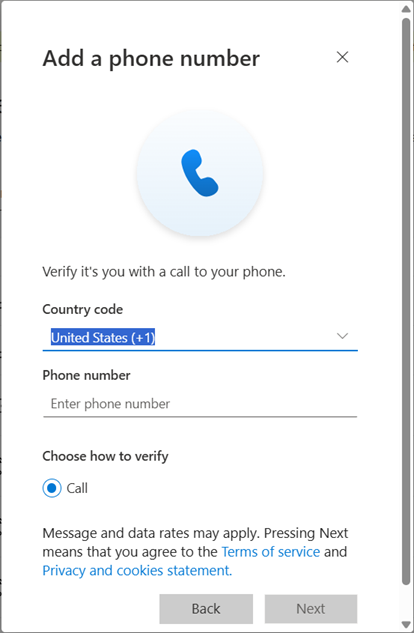
- You'll get a phone call — follow the prompt to verify. (Note: WSU's tenant only offers verification by phone call, not text message.)
Remember: Microsoft is phasing out phone-based verification, so treat this only as a backup to the Authenticator app, not your primary method.
- Select "+ Add sign-in method" and choose "Microsoft Authenticator".
-
After setup, when you sign in to an application that requires it, you'll get an MFA prompt similar to one of these.
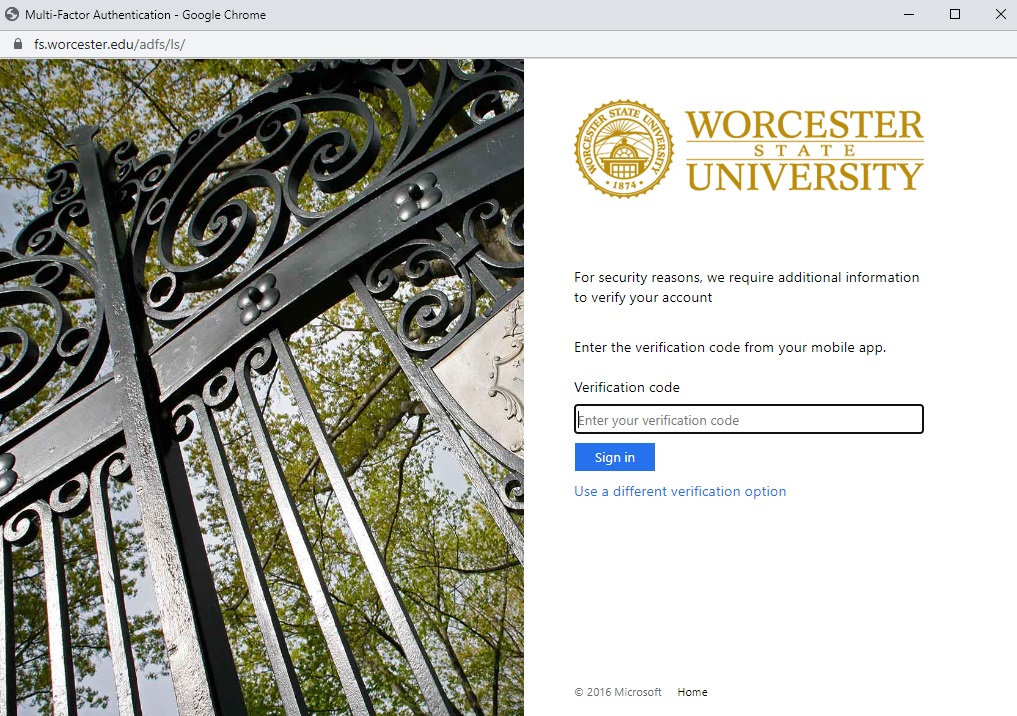
- or -
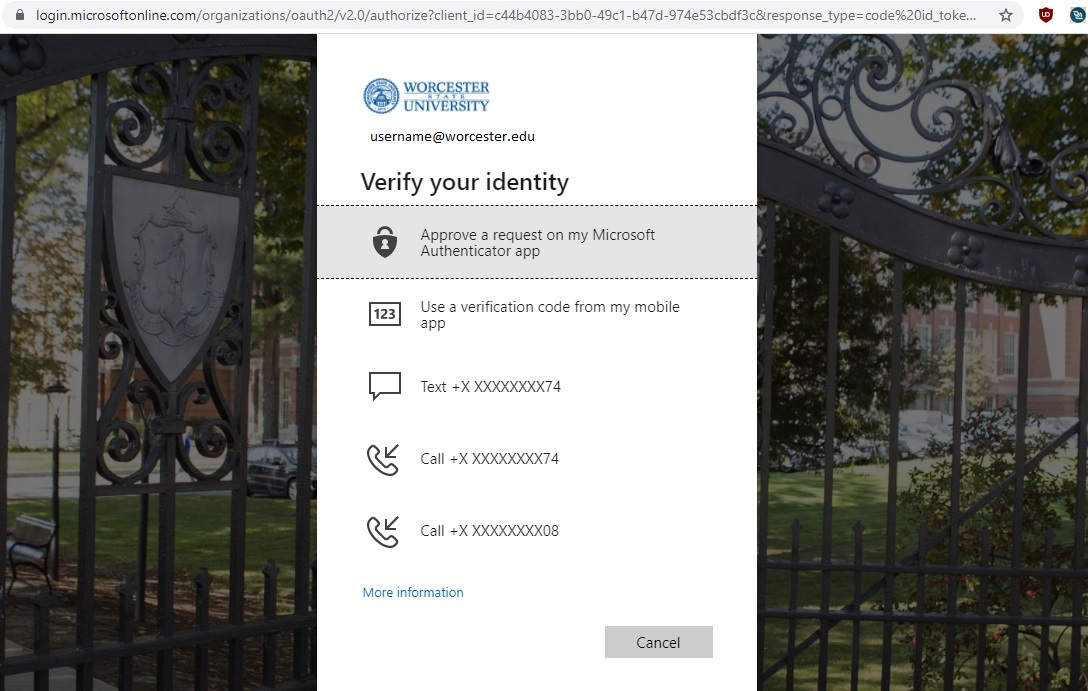
-
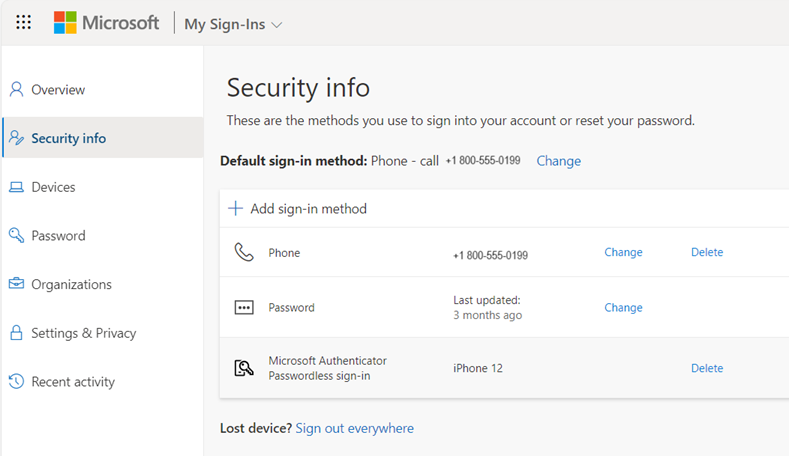
You can review or update your methods at any time by going back to your Security info page at
( https://aka.ms/mysecurityinfo ).
It is recommended you register more than one method (e.g. Authenticator app and a backup phone) in case your primary method isn't available.
-
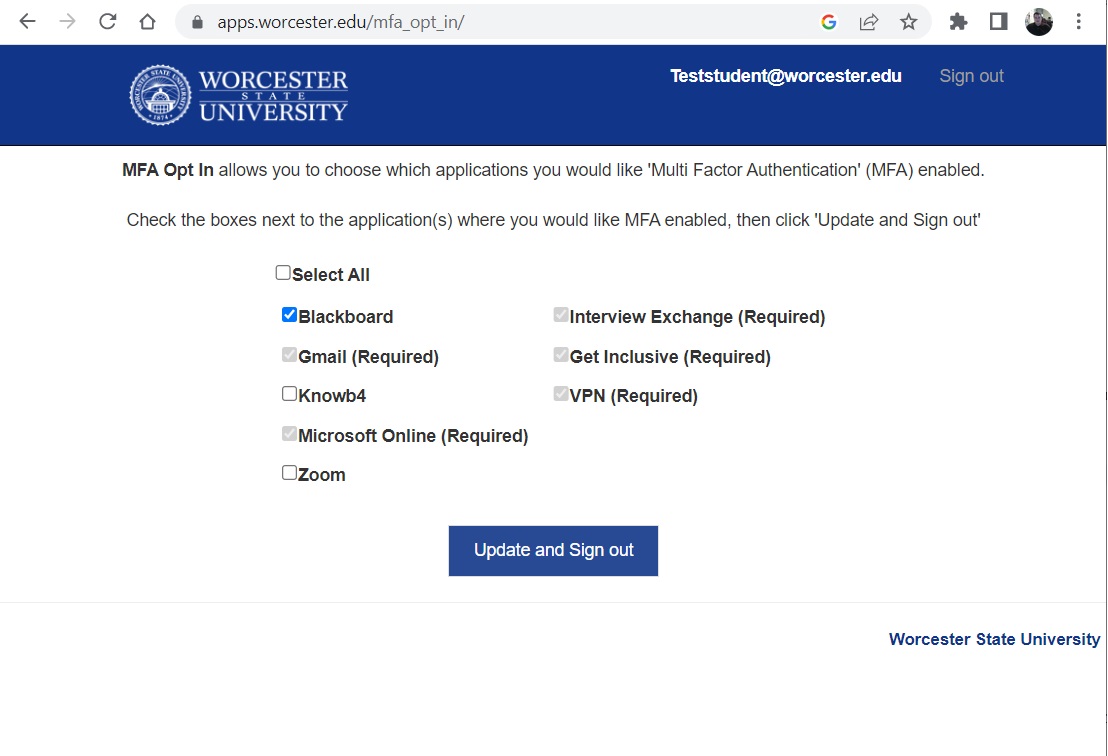
Once the initial setup has been completed, you can opt in to use MFA by going to
( https://apps.worcester.edu/mfa_opt_in ).